Invoice Template Generator: One Invoice, Three Layouts
See how BUQ's Classic, Modern and Minimalist invoice templates differ, which fields each one prints, what you can change and how to download the result.
An invoice template generator gives you a ready-made layout. You type your details once and download a finished invoice, without designing it yourself. In BUQ's invoice generator, the template is a setting, not a file: you fill in one invoice, then switch between templates and watch the same invoice change shape in the preview.
That makes the choice about more than looks. Each template arranges your invoice differently, and each one prints a slightly different set of fields. This guide covers what sets Classic, Modern and Minimalist apart, what you can change, and how to download the result. For the steps of writing the invoice itself, follow our guide to creating an invoice online for free.
The template details below come from BUQ's product team, confirmed for this guide in November 2026.
One invoice, three layouts
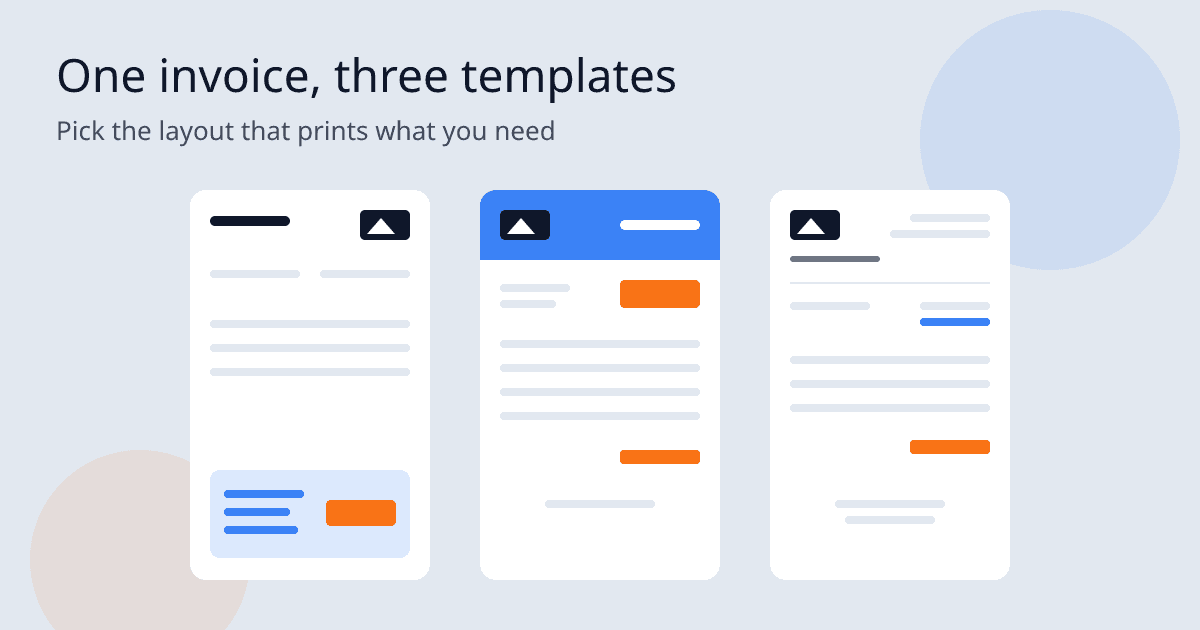
BUQ shows three templates first: Classic, Modern and Minimalist. Here is how each one lays out the same invoice.
Classic
Classic carries the most detail. Your logo, or your company name if you have no logo, sits at the top right. Your details and your client's sit side by side under the heading. At the foot, a colored block holds the date, the payment terms, the payment method and the total.
Modern
Modern opens with a colored header band that holds your logo. The amount due appears in large type near the top, next to the client's details, the invoice number and the date. If you want the total to be the first thing your client reads, Modern puts it there.
Minimalist
Minimalist uses a light, spaced-out heading, with your logo above the word INVOICE. It ends with a thank-you line and your contact details: your email and phone.
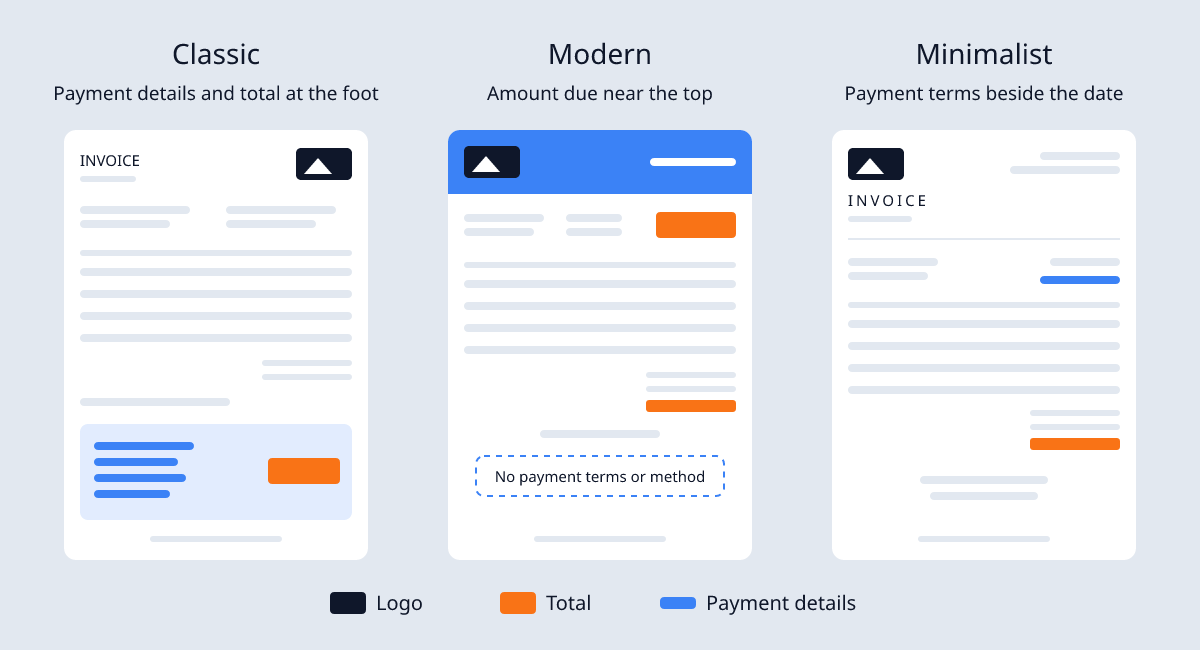
Which fields each template prints
Your details, line items, totals, currency, language and accent color carry over unchanged when you switch templates. What changes is the layout, and also which fields appear on the invoice.
Of the three, Classic prints the most: every field in the table below except Minimalist's closing thank-you line. Modern leaves out your address, your tax ID, the payment terms and the payment method. Minimalist leaves out your tax ID, the payment method and notes, but adds your email and phone under a thank-you line.
| Field | Classic | Modern | Minimalist |
|---|---|---|---|
| Your address | Yes | No | Yes |
| Your tax ID | Yes | No | No |
| Client name and address | Yes | Yes | Yes |
| Invoice number and date | Yes | Yes | Yes |
| Line items and totals | Yes | Yes | Yes |
| Payment terms | Yes | No | Yes |
| Payment method | Yes | No | No |
| Notes | Yes | Yes | No |
| Thank-you line with your email and phone | No | No | Yes |
Nothing you type is lost when you switch. A field one template leaves out is still in your invoice, so it comes back when you switch to a template that prints it.
So pick the template that shows the fields your invoice needs, then check the preview. Which details an invoice has to carry depends on where you and your client are. If you are not sure, check your local rules or ask an accountant.
What you can change, and what stays fixed
Every template uses the same editor, so the same settings apply whichever one you pick.
You can:
- switch template at any time;
- pick an accent color from 28 presets;
- upload a logo;
- set the currency and the document language, from 13 languages;
- fill in every field: invoice number, date, your details and the client's, tax IDs, line items with tax on each line, payment terms, payment method and notes.
You can't:
- move sections around;
- add your own fields;
- move or resize the logo.
On the pricing page, custom colors and fonts are listed for the Business plan only.
The logo has rules of its own: which files work, where it sits in each template and how to check it in the PDF. Our guide to the invoice generator with logo covers those, so prepare your file there before you compare templates.
Templates and plans
Classic, Modern and Minimalist are the first three of 25 invoice templates in BUQ's editor. Which templates you can use depends on your plan. The pricing page lists template access as Basic on Free, Plus on Solo, and Complete on Growth and Business.
Check that page before you choose a plan, because plans and prices can change.
Looking for a Word, Excel or Google Docs file?
If you came looking for a file to edit in Word, Excel or Google Docs, BUQ works differently. It downloads invoices as PDF only, with no Word, Excel or Google Docs file. Downloading needs a free BUQ account.
The editable copy is the one in BUQ. Save the invoice to your account, edit it there when something changes, and download a new PDF. Your client gets a finished document, and you keep one place to make changes.
Choose a template in four steps
- List the fields your invoice must show, such as your tax ID, the payment terms or how to pay you.
- Pick the template that prints them, using the table above.
- Add your logo and pick an accent color, then check the preview.
- Download the PDF and read it through before you send it.
If two templates print everything you need, choose the layout you prefer. The fields come first; the look is the easy part.
Beyond invoices
The quote generator and the credit note generator use the same editor. To learn more about those documents, read how to write a quote or what a credit note is. If you are still choosing a tool, our guides to free invoice generators and invoice generators versus invoice makers cover that.
Ready to compare? Open the invoice generator, fill in your invoice once, and switch between Classic, Modern and Minimalist to see which one shows what you need.
Frequently Asked Questions
Does switching templates delete what I typed?
No. Your details, line items, totals, currency, language and accent color carry over when you switch templates in BUQ.
Which BUQ template prints the payment method?
Of Classic, Modern and Minimalist, only Classic prints the payment method. Modern also leaves out the payment terms, and Minimalist prints the terms but not the method.
Can I download a BUQ invoice as a Word, Excel or Google Docs file?
No. BUQ downloads invoices as PDF only, and downloading needs a free BUQ account. To change an invoice later, edit it in your BUQ account and download a new PDF.